











120 Hz Glasses for Steam Deck and ROG Ally: Check the Display Path and Game FPS
For a portable PC gaming shortlist, XREAL Air 2, One Pro and Rokid Max 2 all have manufacturer-published up-to-120-Hz display claims. Air 2 specifies 120 Hz for 2D and 90 Hz for 3D; One Pro adds X1 and native 3DoF. A supported display mode is the starting point, while the handheld and game determine rendered fps. Do not buy a 120-Hz badge expecting it to make every demanding game run at 120 fps.
Check three rates before buying a120Hz display
Separate the glasses' supported refresh, the source's available output mode and the game's rendered fps. Air 2 documents up to120Hz for2D and90Hz for3D; One Pro lists up to120Hz with its own supported modes. Rokid's Max2 source describes up to120Hz on suitable devices, but90Hz for its Station2 combination. These are configuration-specific vendor figures, not a head-to-head gaming benchmark.
For Steam Deck or ROG Ally, first demonstrate direct USB-C video with the chosen glasses. Open the external display settings and confirm the offered resolution and refresh. Then enable the game's own fps display and play your intended title. If a dock, converter or spatial accessory is added, repeat that full-chain check; the panel's maximum does not certify every intermediate device.
| What you see | What it answers | What it does not answer |
|---|---|---|
| 120Hz external-display mode is available | Source and path offer that mode | Whether the game renders120fps |
| A game runs below120fps | Source/game delivery under those settings | Whether the panel specification is false |
| Only a lower mode appears after adding an accessory | That complete path needs review | That another cable alone must solve it |
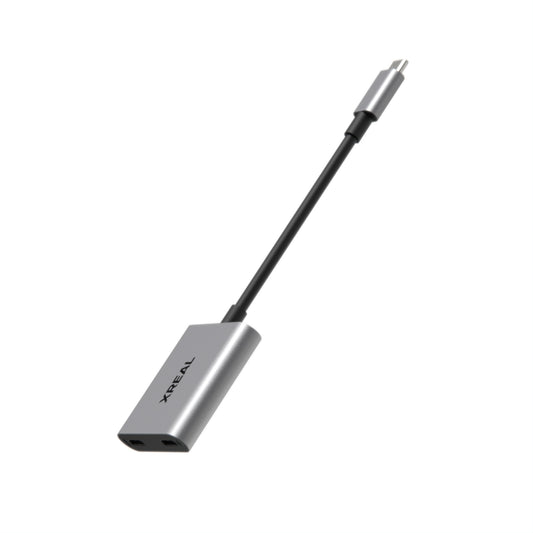
For power planning, use a model-compatible video/charging adapter and its specified supply. Record the game, output mode, brightness and charging state in any battery comparison. Without those matched conditions, do not turn an owner's session length into a universal drain figure.
Build the direct PC-handheld path first
XREAL’s Air 2 page lists Steam Deck and ROG Ally as source examples. Verify the exact model’s USB-C video support, use a suitable video cable, then select the external resolution/refresh mode in the operating system. For One Series, the official connection guide requires DisplayPort video output and appropriate power. The ordinary direct route differs from an original Switch dock/HDMI conversion setup.
| Check | What changes the buying choice |
|---|---|
| Display mode | 2D/3D and complete-path refresh support |
| Game performance | Actual fps at your chosen game settings |
| Charging | A confirmed video-plus-charge accessory, not any generic hub |
| Optical fit | Text, edges and seated comfort with your correction |
Add power only after the picture works
For a longer gaming session, have the seller demonstrate the intended charging/video accessory with the same handheld and display mode. Compare the accessory and cable as part of the packed system. A product that passes video when directly attached may behave differently through an unsuitable hub.
Air 2 was USD199 on the reviewed US listing; One Pro USD599 in the US catalogue. Include missing accessories before comparing the total with a portable monitor. Prefer the simpler direct-display kit when that solves the task; consider One Pro for its native spatial mode, or a monitor for a shared physical image. No independent latency or battery benchmark has been invented for this comparison.
Model specifications
| Parameter | Documented information |
|---|---|
| Air 2 | 46° field of view; USB-C DisplayPort input |

Frequently asked questions
Which models in this guide have a documented120Hz claim?
Air2 in2D, One Pro in supported modes and Rokid Max2 on appropriate sources. Max2 with Station2 is separately described at90Hz; the exact setup matters.
Why can a120Hz display show a60fps game?
Refresh is the rate the display can update; fps is what the game/source produces. Check both counters before attributing the difference to glasses hardware.
Do I need HDMI conversion for Steam Deck or ROG Ally?
Use the supported direct USB-C-video path first. HDMI conversion is for a different source/path, such as a suitable console output, and brings its own mode and power limits.
How do I compare battery drain honestly?
Use the same game, settings, brightness, output mode and power arrangement; record elapsed time and battery indications. This article does not supply a measured drain number from an unmatched setup.